Add Santa to photo

Upload a photo of your tree, room, front door or family and pick what Santa is doing. The room and the people stay as they are.

5 credits a photo. Failed generations are refunded.
No photo? Try one:

This sentence is what we send. Edit it if you like.

This tool edits a photo: add one above first.

Catch Santa on camera: four scenes in detail

One run per scene on a photo that suits it, with the exact words the tool sent. We say what came back, including what we did not ask for.

Security camera

Santa caught on a home security camera

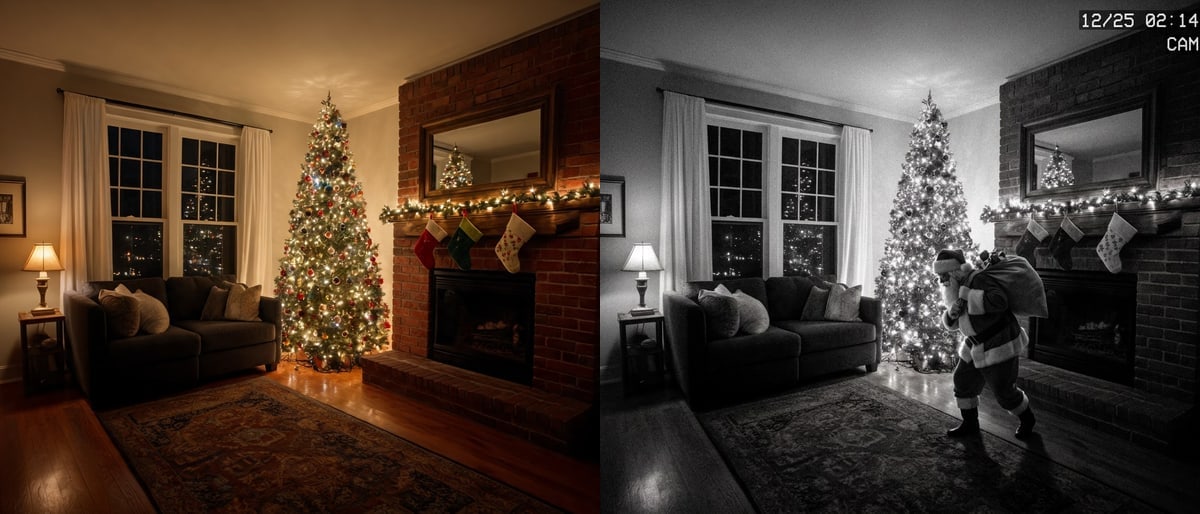
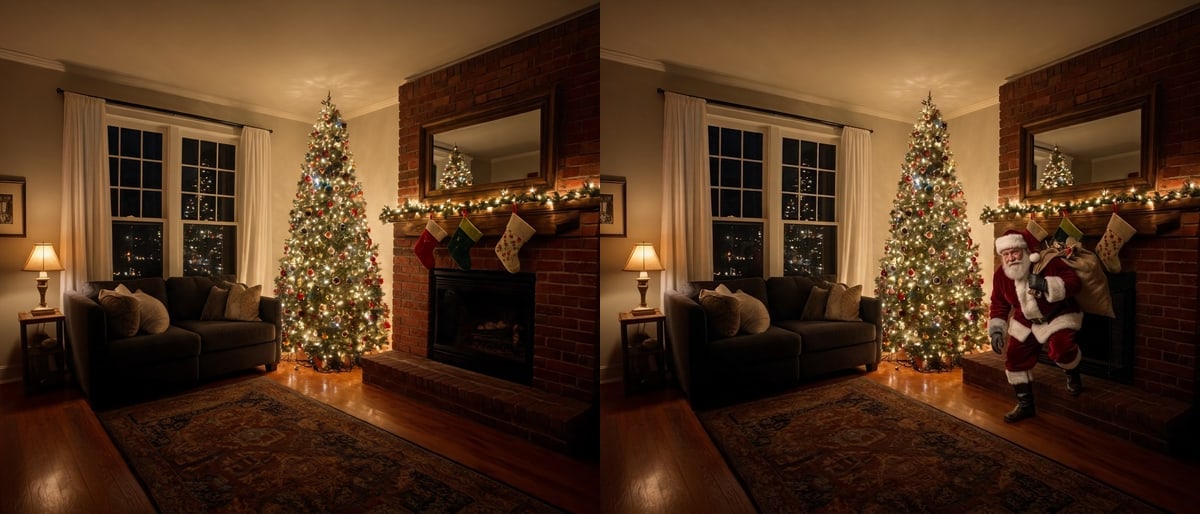
This scene turns the whole picture into black-and-white night-vision footage with a wide-angle look and a small timestamp in the corner, then has Santa tiptoeing towards the tree with a sack. The living room, the tree and the sofa are the same room as the original, only drained of colour. The timestamp is a box in the tool, so you can type the date and time you want the footage to show; our run used 12/25 02:14 AM.

PromptAdd Santa Claus to this photo: seen by a home security camera mounted high in a corner: the whole picture becomes black-and-white night-vision footage with a wide-angle look and a small timestamp '12/25 02:14 AM' in the top corner, and Santa tiptoes towards the tree with a sack of presents. Give him the right size for where he stands and light him with the light already in the room. Match the photo's colours, grain, sharpness and camera angle so he looks as if he was really there. Everything else stays exactly as it is: the room, the furniture, the tree, the decorations and every person in the photo. No text except what the scene asks for, no logos or watermarks.
  • Timestamp is yours to edit
  • Whole picture goes black and white
A dim living room with a lit Christmas tree next to the same room as black-and-white night-vision camera footage with a timestamp in the corner and Santa tiptoeing past the tree with a sack of presentsOriginalNano Banana 2.1
Shh!

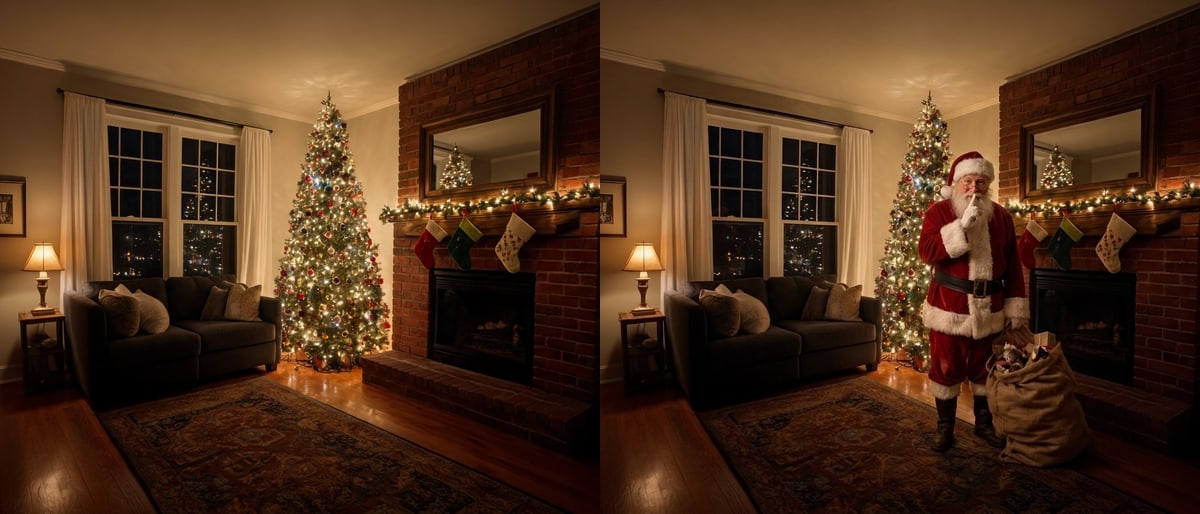
Santa turns to the camera with a finger to his lips

In the same living room, Santa stands beside the tree with his sack and looks at the camera with a finger to his lips, as if he has just been spotted. The tree, the fireplace and the furniture did not move. It is the scene that works best as a surprise for children, because he is looking straight at the lens.

PromptAdd Santa Claus to this photo: standing by the tree with his sack, turning to the camera with a finger to his lips. Give him the right size for where he stands and light him with the light already in the room. Match the photo's colours, grain, sharpness and camera angle so he looks as if he was really there. Everything else stays exactly as it is: the room, the furniture, the tree, the decorations and every person in the photo. No text except what the scene asks for, no logos or watermarks.
  • Santa faces the camera
  • Room unchanged
A dim living room with a lit Christmas tree next to the same room with Santa Claus standing by the tree beside his sack, turned to the camera with a finger to his lipsOriginalNano Banana 2.1
Front door

Santa walking up the path to your front door

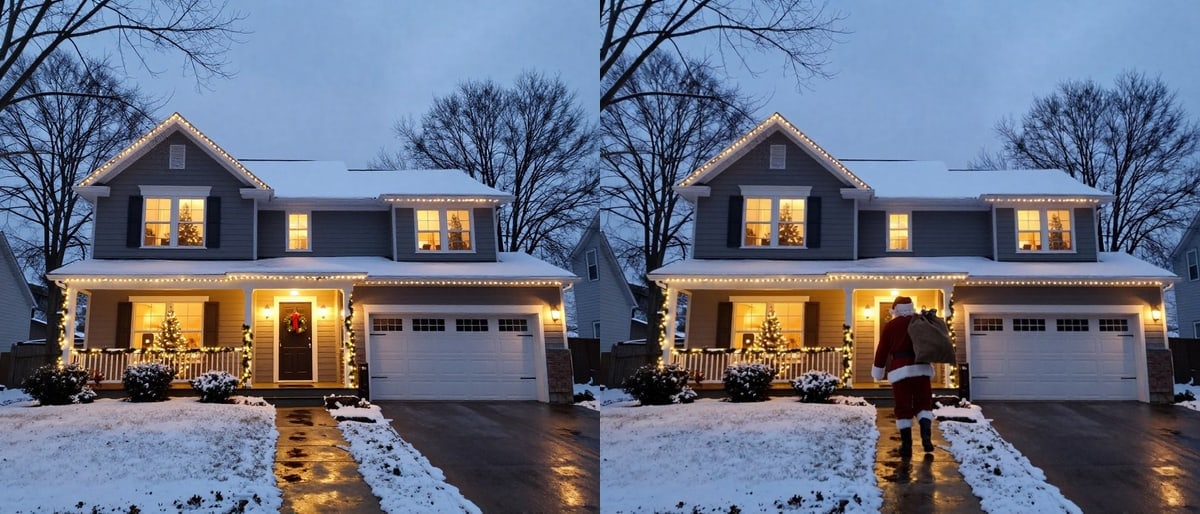
This is the one scene made for a photo of the outside of a house. On a snowy house at dusk with lit windows, Santa came back walking up the path to the front door with a sack over his shoulder, seen from behind. The roof, the windows, the snow and the porch lights stayed in place.

PromptAdd Santa Claus to this photo: for a photo of the outside of a house: walking up the path to the front door at dusk with a big sack of presents over his shoulder, seen from across the street. Give him the right size for where he stands and light him with the light already in the room. Match the photo's colours, grain, sharpness and camera angle so he looks as if he was really there. Everything else stays exactly as it is: the room, the furniture, the tree, the decorations and every person in the photo. No text except what the scene asks for, no logos or watermarks.
  • Use a photo of the outside of the house
  • Santa is seen from behind
A house with snow on the roof and lawn at dusk with glowing windows next to the same house with Santa Claus walking up the path to the front door with a sack of presents over his shoulderOriginalNano Banana 2.1
With family

Santa standing with everyone in the picture

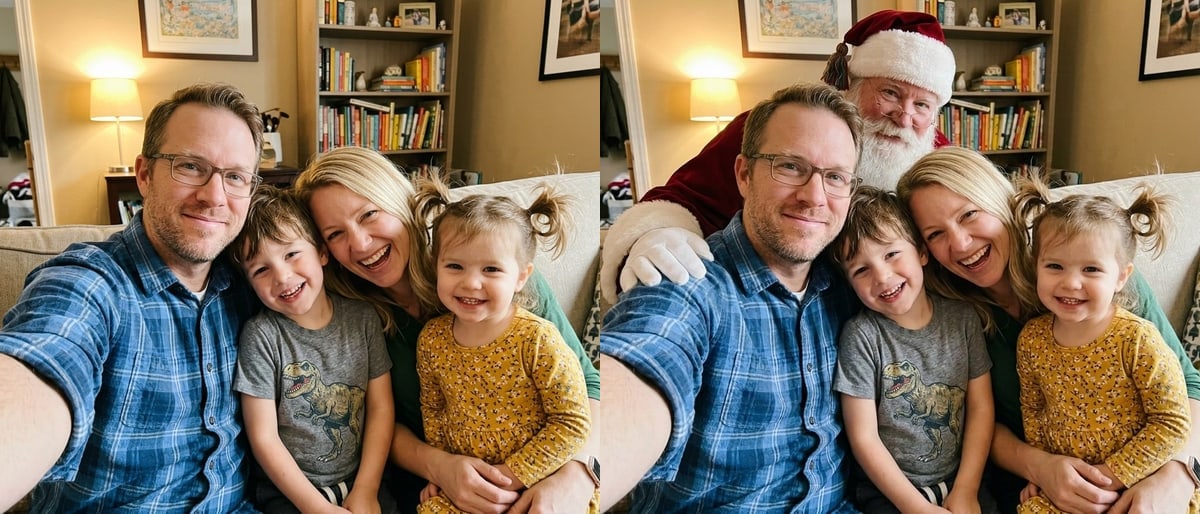
On a selfie of a family of four on a sofa, Santa leaned in behind the father's shoulder with an arm around the group. All four people were still in the picture, with the same faces and clothes. Because the tool redraws the picture, check every face after each run, and run it again if anyone has changed or been replaced.

PromptAdd Santa Claus to this photo: as one more person in the picture, standing just behind or beside the people with an arm around them. Every person already in the photo stays in it, unchanged; nobody is replaced or removed. Give him the right size for where he stands and light him with the light already in the room. Match the photo's colours, grain, sharpness and camera angle so he looks as if he was really there. Everything else stays exactly as it is: the room, the furniture, the tree, the decorations and every person in the photo. No text except what the scene asks for, no logos or watermarks.
  • All four people kept in our run
  • Check every face
A family of four taking a selfie on a sofa in front of a bookshelf next to the same photo with Santa Claus leaning in behind the father's shoulder, everyone still in the pictureOriginalNano Banana 2.1

How to take the original photo

The scenes work best when the starting photo leaves room for Santa and looks like a real corner of your home.

  • Take it on Christmas Eve with the tree lit

    A tree with its lights on gives Santa something to be lit by, and the result looks like the same night rather than a different room.

  • Leave empty floor beside the tree or hearth

    Santa needs space to kneel, stand or step out. In our room photo he was added to the floor beside the tree, not on top of furniture.

  • For the camera look, shoot from high in a corner

    The Security camera scene looks most believable when your original is a wide shot from a corner of the room, the way a real camera would see it.

The other four scenes

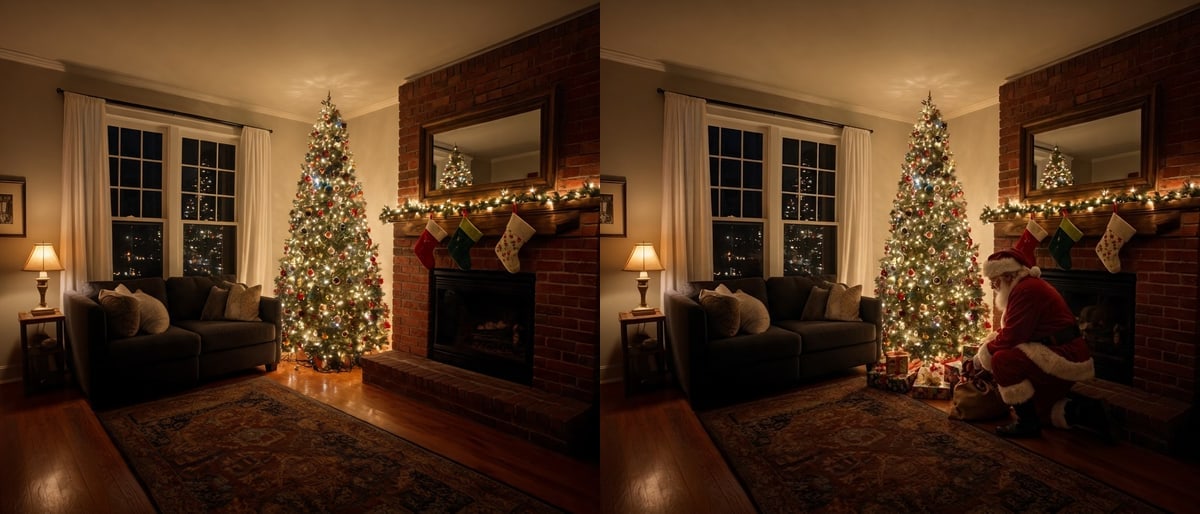
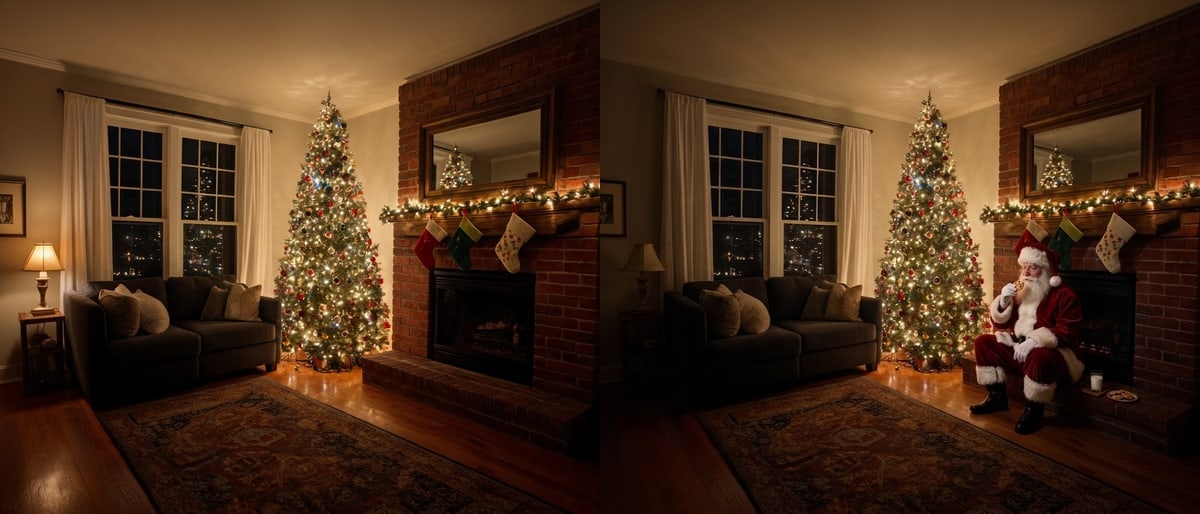
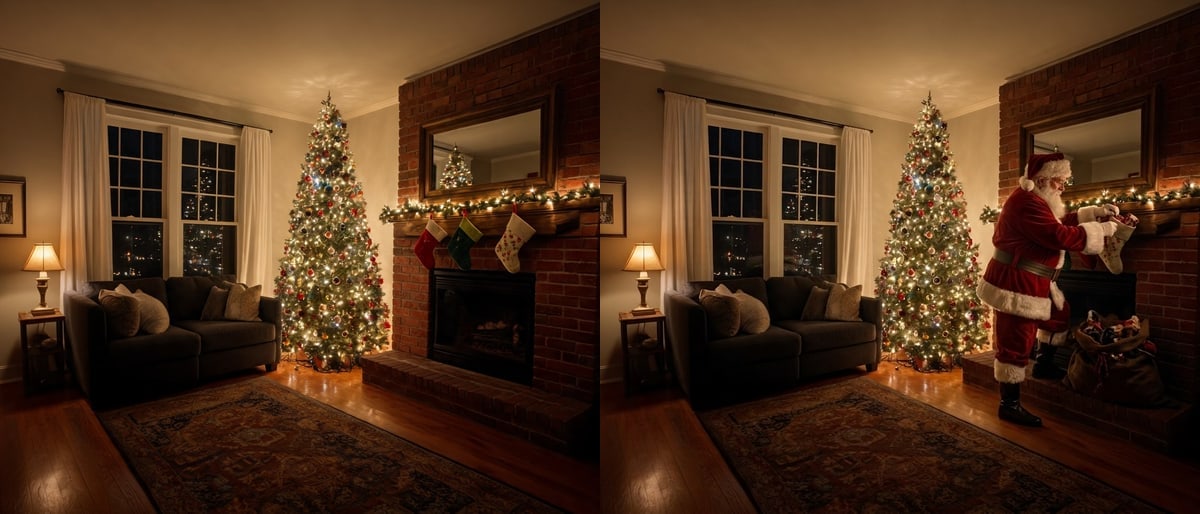
Presents has Santa kneeling by the tree putting wrapped presents under it. Cookies has him sitting on the hearth eating a cookie. Stockings has him at the fireplace filling the stockings from his sack. Fireplace has him stepping out of the fireplace with a sack of toys.

In these four he is smaller in the frame than in the Shh! and Security camera scenes, and in a dark room he can be hard to spot at a glance. If you want him larger, run the scene again: each run gives a different picture, and a failed run costs nothing.

How to use it

Three steps, no install.

  1. Add one photo

    Upload a JPG, PNG or WebP of the person or the pet. Photos are checked, then deleted about a day after you upload them.

  2. Choose a scene

    Pick one of the eight scenes: Presents, Security cam, Cookies, Stockings, Shh!, Front door, Fireplace or With family. The line under the buttons shows what will be sent, and you can change it.

  3. Download the result

    Press the button. About 30 seconds later the picture appears under the tool and stays in My images for 30 days.

AI Photo Editor pricing

A standard edit costs 5 credits; larger sizes and premium models cost 8 to 15. Buy a pack once and use it whenever you like. Bigger packs bring the price of a standard edit down from $0.17 to $0.12.

Starter

Try it out

$4.99one-time

30images

$0.17 per imageBase price

150 credits

Basic

Around 70 images

$9.99one-time

70images

$0.14 per imageSave 14%

350 credits

Plus

Around 150 images

$19.99one-time

150images

$0.13 per imageSave 20%

750 credits

Studio

For daily creators

$69.99one-time

600images

$0.12 per imageSave 30%

3,000 credits

Image counts and per-image prices here use 5 credits, what Nano Banana 2.1 costs at 1K. The cost of the model and size you pick always shows before you start.

Secure one-time checkout through Stripe. Buying a pack only adds credits to your account. USD prices. Review the final amount and any applicable tax at checkout before paying. Credits do not automatically renew, and unused credits can be refunded within 7 days of purchase. The credit cost shows before each image; finished results need no second payment to view or download.

Add Santa to photo questions

How do I catch Santa on camera in my own photo?

Take a photo of your decorated living room, tree or fireplace, upload it above, choose Security cam and generate. The tool turns the picture into night-vision camera footage with Santa tiptoeing towards the tree. For the front of your house, upload a photo of the outside and choose Front door.

Can I change the date and time on the security camera picture?

Yes. When Security cam is selected, a Camera timestamp box appears. Type the date and time you want the corner of the footage to show, for example 12/25 02:14 AM.

Will it keep the people in my photo?

The With family scene tells the model to keep every person already in the photo and add Santa beside them. In our run all four people stayed, but the picture is redrawn each time, so check each face and run it again if someone changed.

Which photo works best?

A clear photo of a room with a visible tree, hearth or doorway and some empty floor. For the front-door scene use a photo of the outside of the house, taken in the evening if you can.

Can I add Santa to a photo with no Christmas tree?

Yes, but the scenes are written around a tree and a fireplace. With family works in any room, because it simply adds Santa next to the people.

How much does it cost?

5 credits a photo on Nano Banana 2.1. New accounts get 5 free credits, enough for one photo. After that, credits come in one-time packs from $4.99, and a photo that fails costs nothing.

How long does it take?

Usually about half a minute. A busy moment can take longer, and the result is saved in My images for 30 days if you leave the page.

What happens to my photo?

Uploaded photos are checked, then deleted about a day after you upload them. The result stays in My images for 30 days, and you can download it at any time.

Can I write my own Santa scene?

Yes. The sentence under the scene buttons can be edited or replaced with your own, for example where Santa stands and what he carries.

Is this an official Santa tool from the model's maker?

AI Photo Editor is an independent site. It is not affiliated with, endorsed by or sponsored by the company that makes the model; model names belong to their owners.

More tools

One account and one set of credits for every tool and model.

Add Santa to my photo now

Upload your own tree, room, front door or family photo and choose one of the eight scenes.

5 credits a photo. Failed generations are refunded.
No photo? Try one:

This sentence is what we send. Edit it if you like.

This tool edits a photo: add one above first.