How to Add Santa to a Photo in Your Home or Family
Add Santa Claus to a real photo of your living room, fireplace, window or family with Nano Banana 2.1. Pick from four scenes for 5 credits a picture.
On this page5 sections
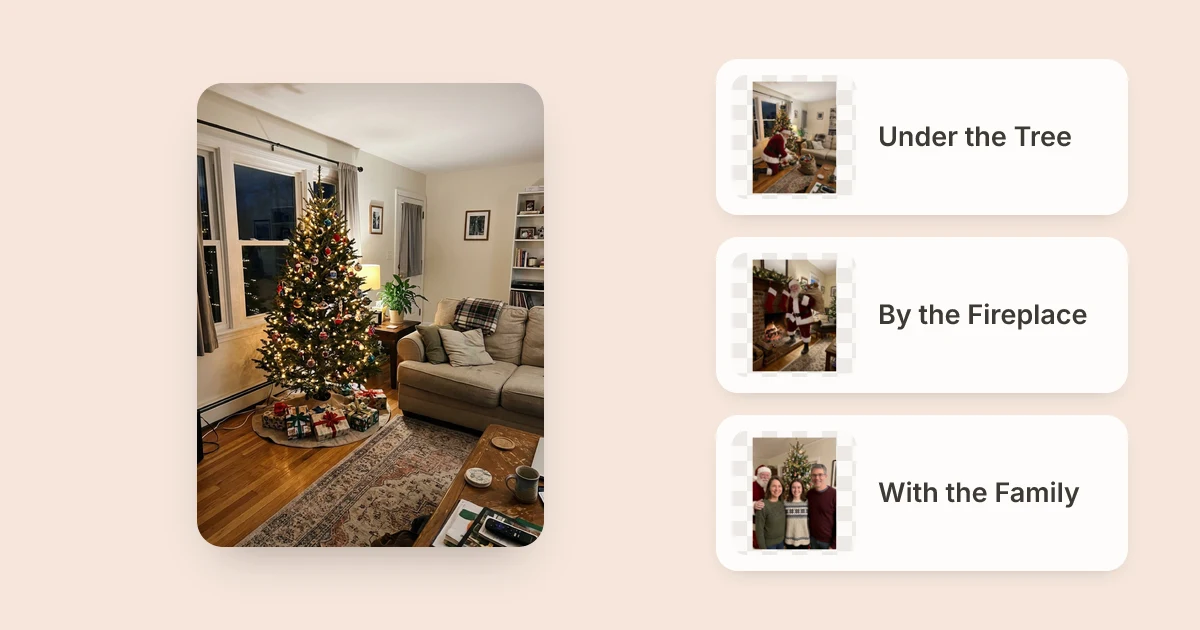
Upload one photo of your decorated living room, fireplace, window or family portrait to Add Santa to Photo, choose one of four built-in scenes, and click generate. The tool runs Nano Banana 2.1 at 5 credits per photo (about 25 to 46 seconds in most tests) to place Santa inside your actual room while keeping your furniture and faces intact.
Putting Santa Claus into a real photo of your own living room works far better than sharing stock holiday clip art because children recognize their own sofa, stockings and Christmas tree. Instead of masking layers by hand, you can give one straight room shot and let the model match the indoor lamps, camera angle and colour grain around your existing furniture.
1Pick the right scene before you upload
Four fixed placements cover the main ways people stage a Santa visit or add him to a family snapshot. Matching the scene choice to what is actually visible in your frame keeps the model from squeezing Santa into a tight corner.
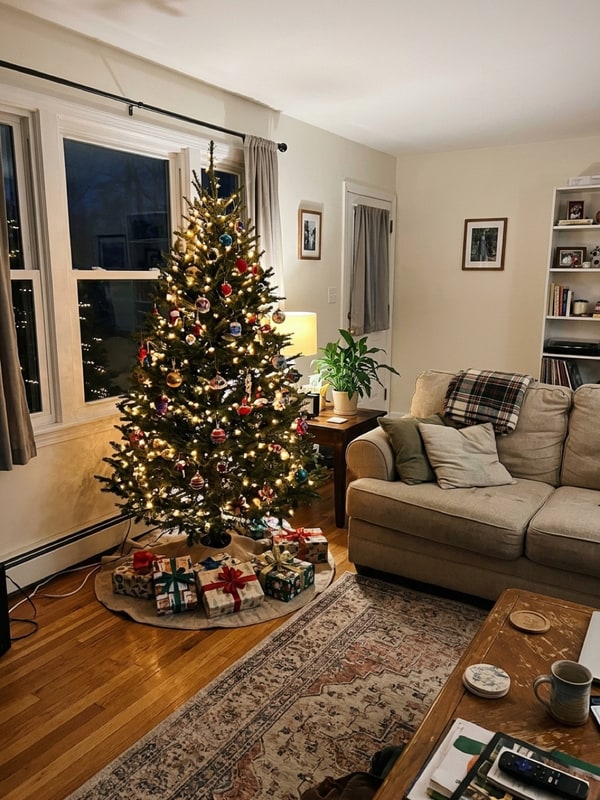 Before: living room
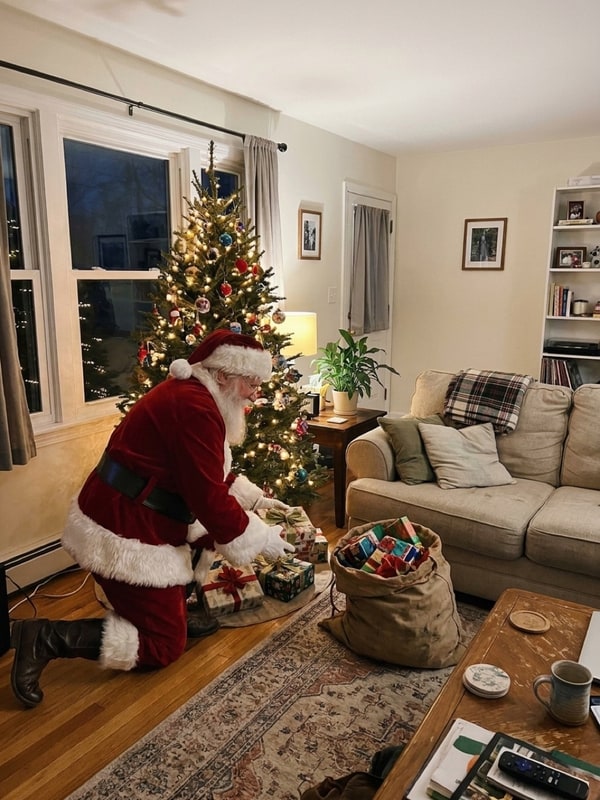 After: Santa by tree
2Three steps from room photo to proof
- Shoot a wide indoor photoStep back far enough that the floor beside your tree, the hearth bricks, or open shoulder space in a group photo stays clear. Upload one JPG, PNG or WebP up to 20 MB.
- Pick a scene and generateSelect one of the four scenes from the dropdown in Add Santa to Photo. The prompt and 1K resolution are locked for you automatically at 5 credits.
- Inspect details and wait for the window view if busySlowest stepLiving-room and fireplace runs took 25 to 46 seconds, while busier load can push a run longer. Always check faces and ornaments before saving from
/history.
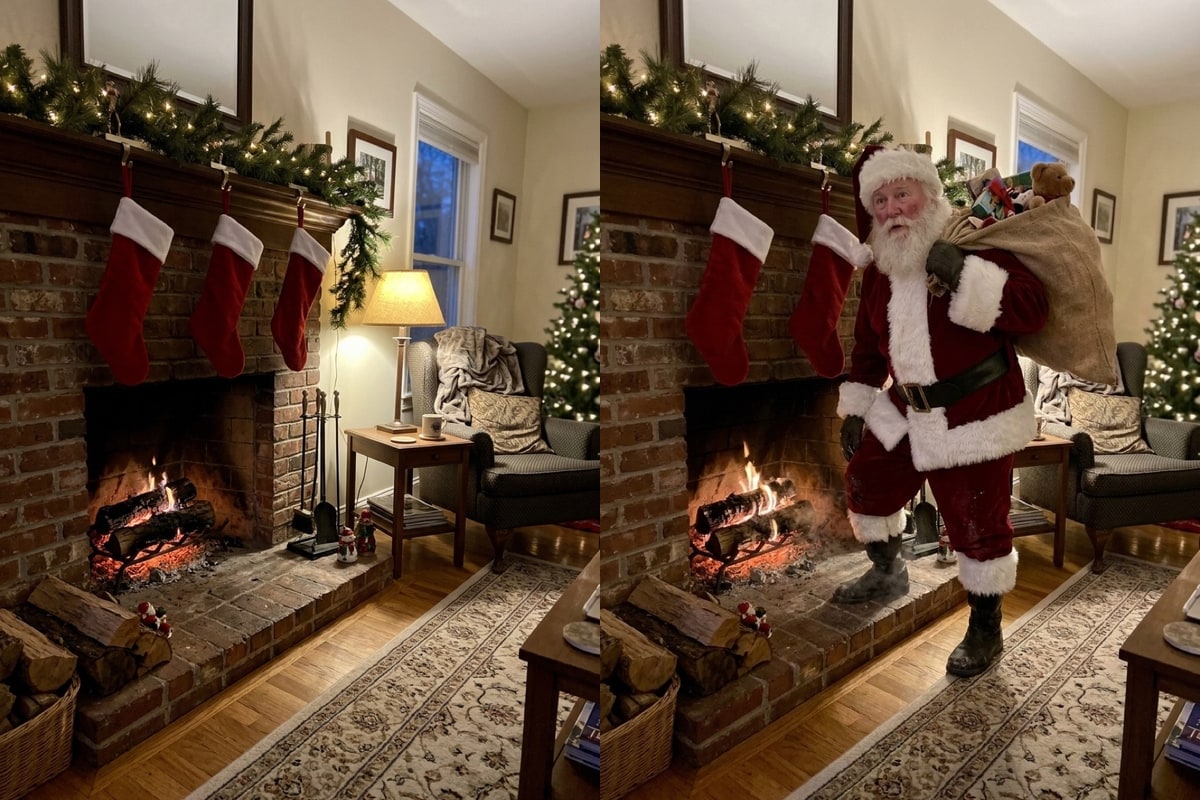
3How the four scenes compare in real runs
| Scene | Tested Time | What Stayed Unchanged | Best Starting Photo |
|---|---|---|---|
| Leaving gifts under the tree | 25 s | Lit tree, sofa, floor rugs and table mugs | Living room with clear floor space beside the tree |
| Stepping out of the fireplace | 32 s | Lit hearth, stockings, garland and side armchair | Wide view of the fireplace and hearth floor |
| Waving through the window | 113 s (high load) | Seated portrait, sweater, mug and warm lamp | Indoor shot facing dark or snowy window panes |
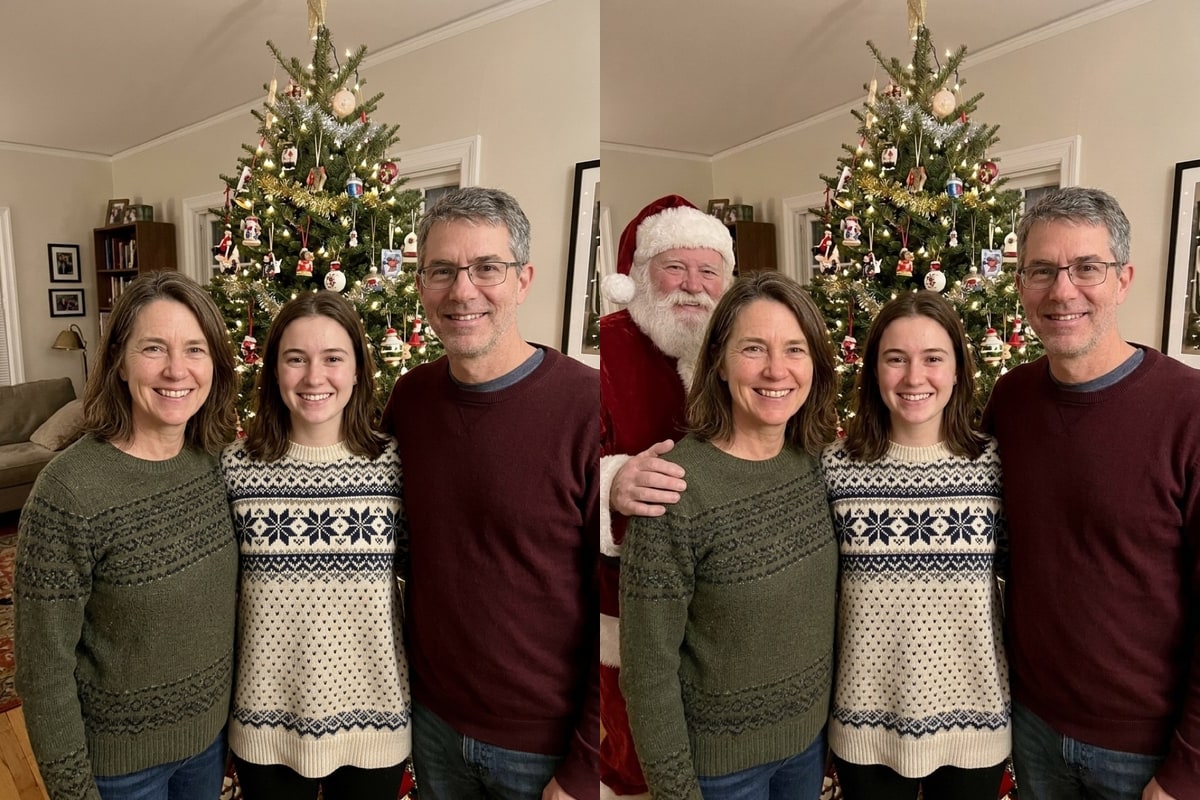
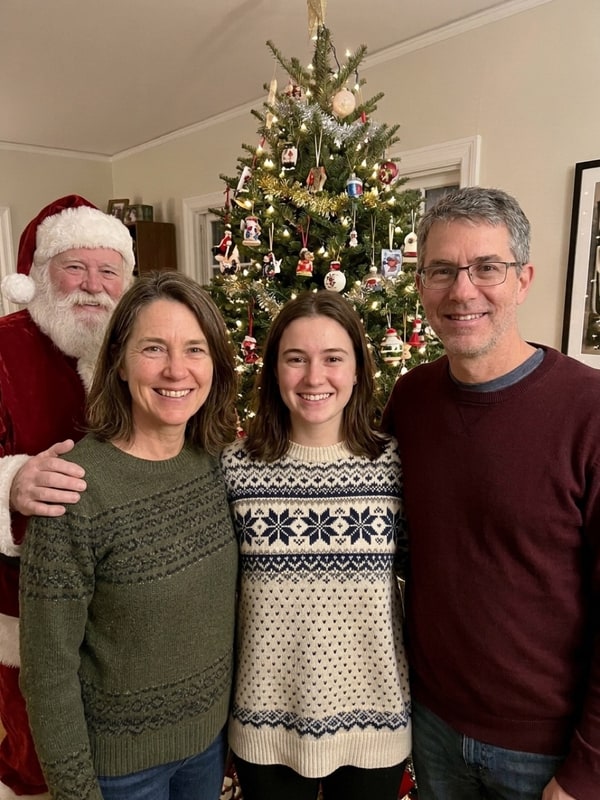
| Standing with the family | 46 s | All three people, glasses, sweaters and tree | Group photo with space behind one shoulder |
Notice the variation in wall-clock speed above. Room scenes ran in 25 to 46 seconds during our 16 November 2026 test runs, while the window portrait took 113 seconds under busier queue load. New accounts start with 5 free credits (no card needed), and failed images cost nothing (the credits come back).
Turn your Santa proof into a seasonal keepsake
Once you have a clean result where Santa fits the lighting of your hallway or tree, you do not have to stop at one raw snapshot. You can load that saved result from My images directly into our AI Christmas Card Generator to add a red-and-gold border, watercolor pines, and your family greeting for another 5 credits. You can also browse Family Christmas photo ideas if you want matching sweaters or falling snow without Santa in the shot.
Load one of the sample living room photos or upload your own tree, fireplace or family picture to try Nano Banana 2.1 for 5 credits.
FAQ
How can I catch Santa in my house without Photoshop?
Take a normal photo of your living room tree or decorated fireplace in evening lighting, upload it to /add-santa-to-photo, and select Leaving gifts under the tree or Stepping out of the fireplace.
Because the model matches your wall colour and indoor shadows directly on top of your own room, you do not need cutouts or masking brushes.
Does the family scene keep every person in the photo?
The Standing with the family prompt tells the model to add Santa Claus beside the group and leave every existing person untouched.
On our three-person test photo, Nano Banana 2.1 kept all three people in 2 of 3 runs (taking one person’s place in the third), while GPT Image 2.5 kept everyone in 2 of 2 runs; if anyone is replaced, generate again or switch the model to GPT Image 2.5 in this tool.
How much does it cost to put Santa in a picture?
Every run on /add-santa-to-photo costs 5 credits at 1K resolution using Nano Banana 2.1.
New accounts receive 5 free credits on sign-up with no card required, failed generations cost nothing (the credits come back), and optional one-time packs start at $4.99 for 150 credits.
How long does generating a Santa photo take?
In our November 2026 runs, most scenes finished between 25 and 46 seconds. Queue traffic affects turnaround, and one heavily loaded window scene took 113 seconds before returning the image.
What happens to photos I upload?
Uploaded photos are saved under an unguessable URL for processing and deleted automatically after roughly one day.
Finished pictures stay in your private /history (My images) page for 30 days and are never used to train image models or shared publicly.