How to Remove an Object From a Photo Without Blur
Circle an unwanted bin, cable or clutter in your browser and rebuild the background cleanly with GPT Image 2.6 Flare in 12 to 13 s for 5 credits.
On this page4 sections
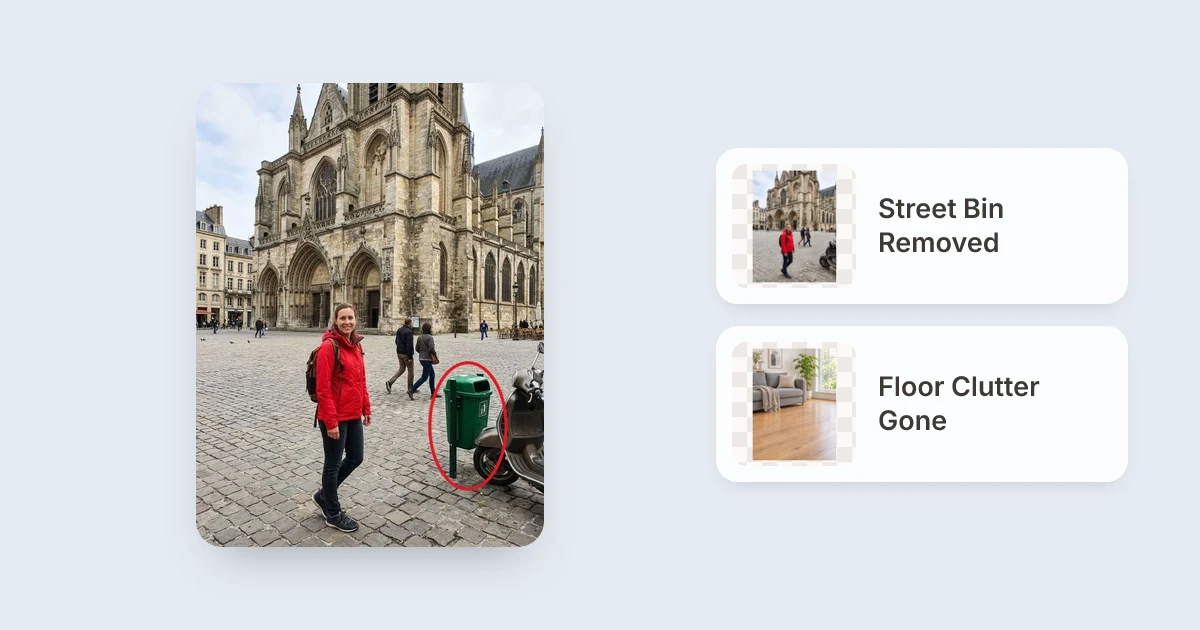
Upload your image to Remove Object from Photo, click Draw to edit to circle the stray bin, cable or clutter (or name the items in one plain sentence), and run GPT Image 2.6 Flare at 5 credits. Because the model reconstructs realistic pavement, walls or flooring behind what you marked rather than smudging nearby pixels, our street and living-room tests finished cleanly in 12 to 13 seconds.
Traditional healing and clone-stamp brushes drag adjacent textures across the spot you paint over, which leaves telltale repeated tiles, blurry smears on floorboards or warped brick lines.
With Draw to edit on GPT Image 2.6 Flare, you put up to 40 red circles, arrows or scribbles straight onto the photo in your browser - the editor passes those marks privately as spatial instructions, erases the object, and never draws the red circle into your final picture.
1Three steps to erase clutter in your browser
- Upload your photoDrag in a JPG, PNG or WebP up to 20 MB. A street photo with a green bin already circled is preloaded so you can press Generate right away.
- Circle the object or name itClick Draw to edit and draw a red ring slightly wider than the item (including its shadow), or skip drawing and name up to several clutter items in one sentence.
- Generate and inspect edgesRuns finish around 12 to 13 seconds at 5 credits (failed runs cost nothing - the credits come back). Inspect the rebuilt floor, wall or cobblestones before downloading from
/history.
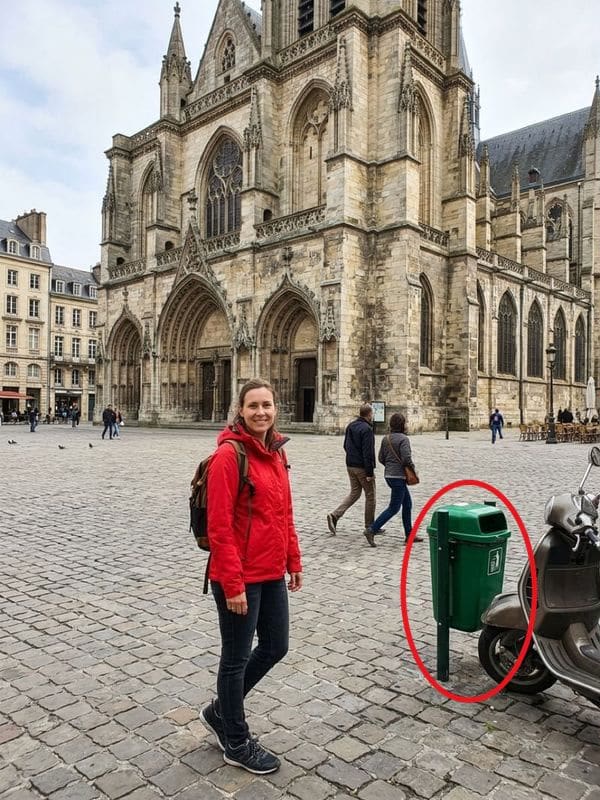 Before: circled green bin
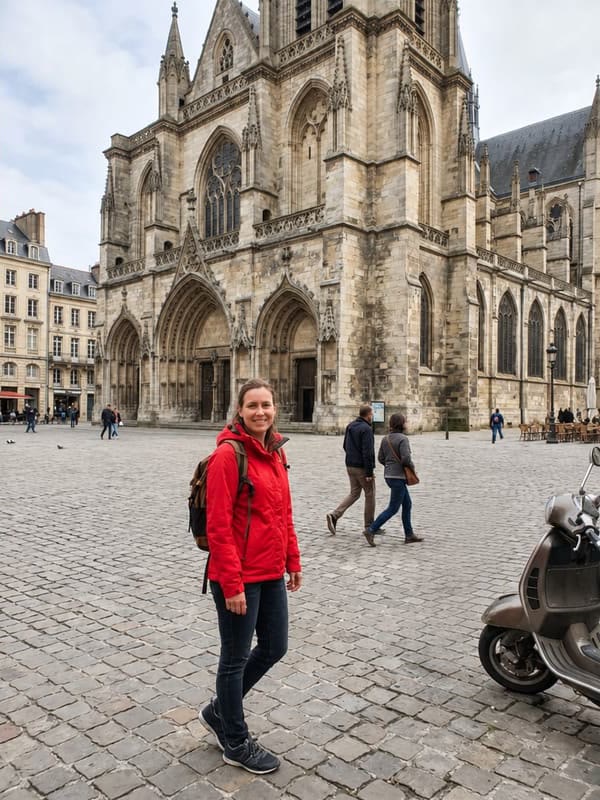 After: stone street rebuilt
2Circle with Draw to edit vs type what to remove
- One unwanted bin, cup or pole sits close to shoes, bikes or clothing you must keep.
- Describing which exact corner item should disappear would take too many words.
- You need precise spatial guidance (up to 40 marks on one photo).
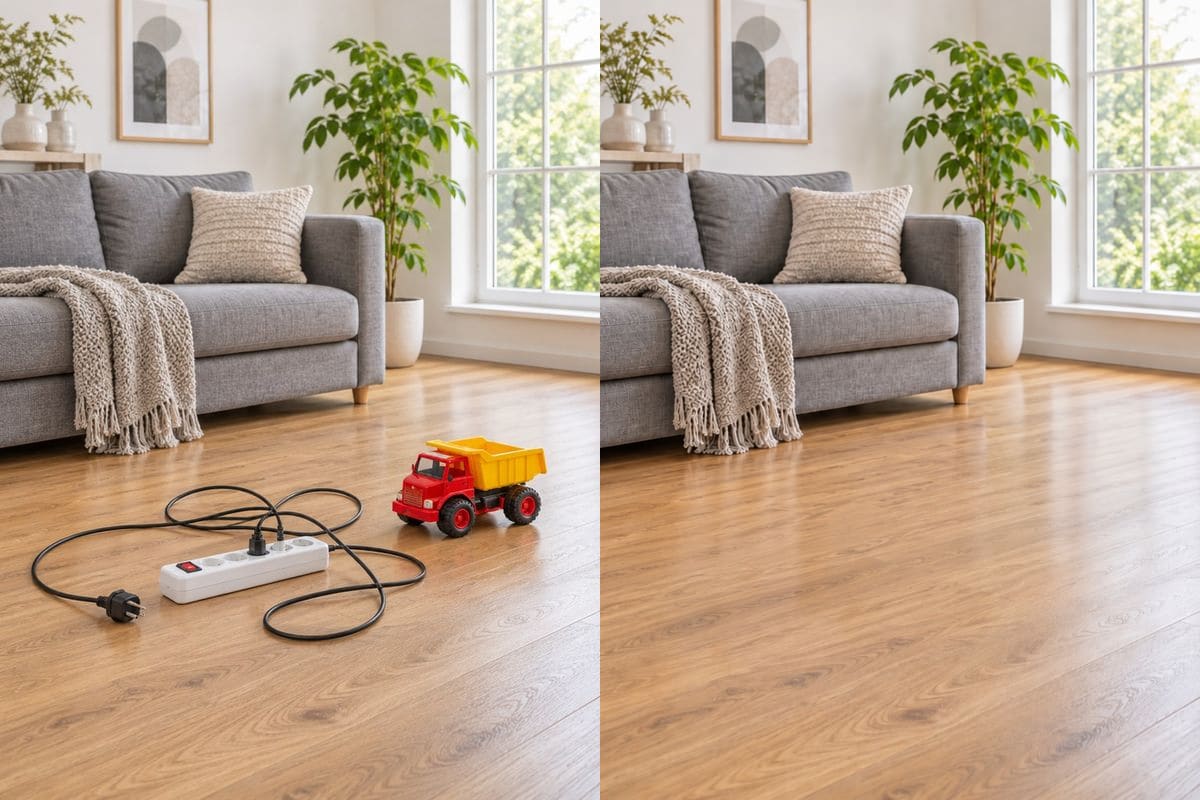
- Multiple distinct items sit apart on open flooring (
"Remove the power cable, the power strip and the toy truck"). - You want a quick clean sweep without drawing loops over each cord.
- You end with
"Keep everything else exactly the same"to lock lighting and furniture.
3How single-ring and multi-object cleanup compare
| Removal Method | Measured Speed | Objects Removed | Key Strength |
|---|---|---|---|
| Single Draw to edit ring | 12 s | 1 green street bin | Targets one item cleanly even near a crowded street |
| Plain-English item list | 13 s | Cable, power strip, toy truck | Clears multiple floor clutter pieces in one pass |
| Second pass + Careful mode | Still 5 credits (1K) | Faint traces on busy tiles | Handles patterned carpets, blinds or railings |
When you also want bystanders cleared from travel shots or captions taken off your own snapshots, our dedicated cleanup tools use the same GPT Image 2.6 Flare engine:
try Remove Person from Photo (see How to remove a person from a photo) or Remove Text from Image on your own photography.
Careful (still 5 credits at 1K).Open Remove Object from Photo to circle unwanted items straight in your browser using a new account’s 5 free credits.

FAQ
Does the red circle appear in my downloaded photo?
No.
GPT Image 2.6 Flare receives your browser marks purely as location guides for what to remove and draws the clean background without any red outline.
How many items can I circle in one photo?
Up to 40 marks on a single image, using separate rings or scribbles per item. If three or four loose floor items have clear names (cables, cups, bags), listing them together in one sentence can be even quicker.
Why did the model leave a shadow where the object stood?
Usually because the drawn ring hugged only the object’s outline and missed its shadow on the floor or wall. Re-run with Edit this result and draw a wider ring that covers both the shadow and edge.
What if a busy pattern looks slightly off after removal?
Press Edit this result on the output card, circle only the patched area, and switch the studio Mode selector from Fast to Careful before generating again.
How much does object removal cost?
5 credits per image at 1K resolution (whether in Fast or Careful mode).
New accounts include 5 free credits, failed images cost nothing (the credits come back), and paid packs start at $4.99 one-time with no recurring subscription.